
Quick, built‑in ways to capture your screen on Windows or Mac laptops
How to Screenshot on Laptop Easy Methods for Windows and Mac
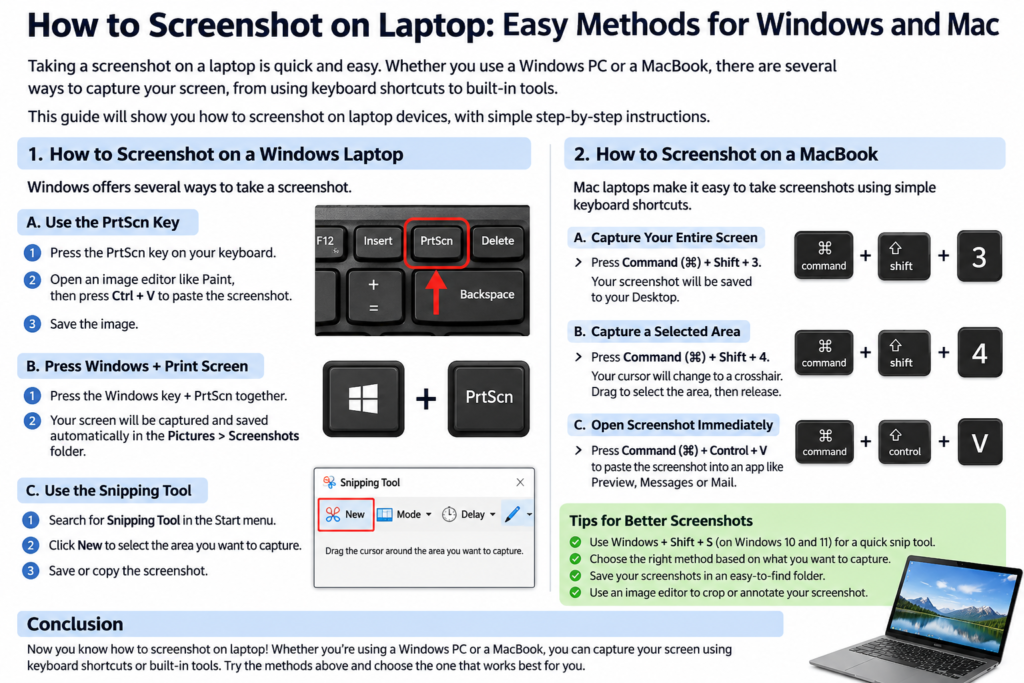
Taking a screenshot on a laptop is a simple way to save what is displayed on your screen as an image. If you need to capture a document, receipt, error message, or anything else, you can do it without installing extra software. This guide shows How to Screenshot on Laptop Easy Methods for Windows and Mac using built‑in shortcuts and tools.
Both Windows and macOS include native screenshot features. Because these tools are already installed, you can capture the entire screen, a specific window, or a selected portion instantly.
1. How to Screenshot on a Windows Laptop
Windows 10 and Windows 11 laptops offer several methods. For example, the Print Screen key works for quick captures, while the Snipping Tool provides more control.
Method 1: Use the Print Screen (PrtScn) Key
The Print Screen key copies the whole screen to the clipboard. Then you can paste it into an image editor.
- PrtScn
- PrtSc
- Print Screen
- PrtScn/SysRq
Steps:
- Open the page or window you want to capture.
- Press the PrtScn key.
- Open Microsoft Paint or another editor.
- Press Ctrl + V to paste.
- Save the image.
Method 2: Press Windows + Print Screen
This shortcut saves the screenshot automatically to Pictures → Screenshots.
- Open the screen you want to capture.
- Press Windows + PrtScn.
- Watch the screen dim briefly.
- Find the file in Pictures → Screenshots.
Method 3: Use Windows + Shift + S
This combo opens the Snip & Sketch overlay, letting you select a region, window, or full screen.
- Press Windows + Shift + S.
- Choose a capture mode.
- Drag to select the area.
- Click the notification to edit or save.
Method 4: Use the Snipping Tool
The Snipping Tool offers rectangular, free‑form, window, and full‑screen modes.
- Search for “Snipping Tool” in the Start menu.
- Click New and select an area.
- Use editing tools if needed.
- Save the screenshot where you like.
2. How to Screenshot on a Mac Laptop
MacBook users have built‑in shortcuts that require no extra apps. Because they save directly to the desktop, you can access the image instantly.
Method 1: Capture the Entire Screen
- Press Command + Shift + 3.
- Release the keys.
- The screenshot appears on the desktop.
Method 2: Capture a Selected Area
- Press Command + Shift + 4.
- Drag the crosshair to select the region.
- Release to save the image.
Method 3: Capture a Particular Window
- Press Command + Shift + 4.
- Press Spacebar; the cursor becomes a camera.
- Click the window you want.
Method 4: Use the Screenshot Toolbar
- Press Command + Shift + 5.
- Choose capture mode or screen‑recording options.
- Click Capture to save.
3. Where Are Screenshots Saved?
Knowing the default save locations helps you find your images quickly.
On Windows: Pictures → Screenshots (or the folder you choose in the Snipping Tool).On Mac: Desktop by default, unless you change the location via the toolbar Options.
4. Screenshot Without a Print Screen Key
Many compact laptops lack a dedicated Print Screen key, but you can still capture screens.
- Use Windows + Shift + S.
- Open the Snipping Tool from the Start menu.
- Try Fn + another key that may act as Print Screen.
- On a Mac, use Command + Shift + 3 or + 4.
5. Paste a Screenshot Directly Into Word
Capture, then paste the image into a Word document without saving a separate file.
- Capture with PrtScn or Windows + Shift + S.
- Open Word and place the cursor.
- Press Ctrl + V to paste.
- Resize or move the image as needed.
6. Common Problems and Fixes
Print Screen Not Working
If PrtScn does nothing, try Windows + Shift + S or check whether you need to hold the Fn key.
Screenshot Not Saving
Windows + Shift + S copies to the clipboard; open the notification and click Save.
Black Screenshot
Protected video apps may block capture. Try a regular desktop window to verify.
Cannot Find Screenshot
Search Pictures → Screenshots on Windows or check the Desktop on macOS.
Frequently Asked Questions
How do I screenshot on a laptop using the keyboard?
On Windows, use PrtScn or Windows + Shift + S. On a Mac, use Command + Shift + 3 or + 4.
What is the shortcut for taking a screenshot on a Windows laptop?
Windows + Shift + S opens the capture overlay; Windows + PrtScn saves the whole screen automatically.
How do I screenshot on an HP laptop?
Use the same Windows shortcuts—PrtScn, Windows + Shift + S, or Windows + PrtScn.
How do I screenshot on a Dell laptop?
Press PrtScn or Windows + Shift + S; some Dell models require Fn + PrtScn.
How do I screenshot on a Lenovo laptop?
Use Windows + Shift + S or the Print Screen key, possibly with Fn.
Can I take a screenshot on a laptop without downloading an application?
Yes. Windows includes Snipping Tool; macOS provides built‑in shortcuts and a toolbar.
How do I take a screenshot of only one part of my laptop screen?
Use Windows + Shift + S on Windows, or Command + Shift + 4 on macOS to select a region.
Conclusion
Now you know How to Screenshot on Laptop Easy Methods for Windows and Mac. Choose the shortcut that matches your needs, and capture any screen content instantly.